
Two-Factor Authentication for Email: How to Secure Your Business Accounts
What Is Two-Factor Authentication (2FA)?
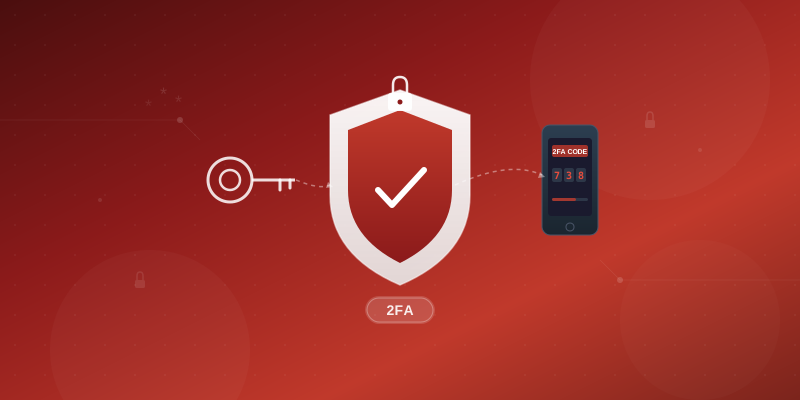
Two-factor authentication adds a second verification step when you sign in. Even if someone steals your password, they cannot access your account without the second factor—typically a 6-digit code from an authenticator app on your phone.
This is one of the single most effective security measures you can take. According to Microsoft, 2FA blocks over 99.9% of automated account compromise attacks.
Why Your Business Email Needs 2FA
Business email accounts are high-value targets. They contain sensitive contracts, financial data, client communications, and password reset links for other services. A compromised email account can lead to:
- Business email compromise (BEC) fraud—attackers impersonate you to request wire transfers or sensitive data
- Data breaches—confidential attachments and conversations exposed
- Account takeover chains—your email is the master key to every service that sends password resets to it
- Reputation damage—spam or phishing sent from your legitimate address
A strong password helps, but passwords get phished, leaked in breaches, or guessed. 2FA ensures a stolen password alone is not enough.
How to Enable 2FA in Mailbux
Mailbux supports Time-based One-Time Passwords (TOTP), the industry standard used by Google Authenticator, Authy, Microsoft Authenticator, and other apps.
Step 1: Open Security Settings
Log into your Mailbux webmail at mail.yourdomain.com (or your custom branded URL). Click your profile icon in the top right, then select Security or navigate to Settings → Security.
Step 2: Enable Two-Factor Authentication
In the Security section, find Two-Factor Authentication and click Enable. A QR code will appear on screen.
Step 3: Scan the QR Code
Open your authenticator app (we recommend Google Authenticator or Authy) and scan the QR code. The app will start generating 6-digit codes that refresh every 30 seconds.
Step 4: Verify and Save
Enter the current 6-digit code from your authenticator app to confirm the setup. Once verified, 2FA is active on your account. Save your recovery codes in a secure location—these are your backup if you lose access to your authenticator app.
Setting Up App Passwords for Email Clients
Once 2FA is enabled, email clients like Outlook, Thunderbird, Apple Mail, and mobile apps cannot use your regular password—they do not support interactive 2FA prompts. Instead, you will create app-specific passwords.
What Are App Passwords?
An app password is a unique, randomly generated password that grants a specific application access to your email account. Each app password works only for IMAP/SMTP/POP3 connections and bypasses the 2FA prompt since the password itself acts as the authorization.
How to Create an App Password
- Go to Settings → Security → App Passwords in your Mailbux webmail
- Click Generate New App Password
- Give it a descriptive name (e.g., "Outlook Desktop", "iPhone Mail", "Thunderbird")
- Copy the generated password and paste it into your email client password field
- You will not see this password again, so configure your client immediately
Best Practices for App Passwords
- One password per device—if a device is lost, revoke only that app password
- Use descriptive names—"iPhone 15 Mail" is better than "Phone"
- Revoke unused passwords—removed a device? Delete its app password immediately
- Never share app passwords—treat them like your main password
Recommended Authenticator Apps
| App | Platform | Cloud Backup | Free |
|---|---|---|---|
| Google Authenticator | iOS, Android | Yes (Google account) | Yes |
| Authy | iOS, Android, Desktop | Yes (encrypted) | Yes |
| Microsoft Authenticator | iOS, Android | Yes (Microsoft account) | Yes |
| 1Password | All platforms | Yes (vault) | No (paid) |
We recommend Authy for its encrypted cloud backup—if you lose your phone, you can restore your 2FA tokens on a new device. Google Authenticator now also supports cloud sync via your Google account.
What If I Lose My Authenticator?
This is the most common concern with 2FA. Here is how to prepare:
- Save recovery codes—when you enable 2FA, Mailbux provides one-time-use recovery codes. Store them in a password manager or print them and keep them in a safe
- Use an authenticator with cloud backup—Authy and Google Authenticator both support this
- Set up on multiple devices—scan the QR code on a second phone or tablet as a backup
- Contact support—as a last resort, Mailbux support can help verify your identity and reset 2FA
Enforcing 2FA Across Your Organization
Individual 2FA is good. Organization-wide 2FA is essential. As an admin on Mailbux, you can see which accounts have 2FA enabled. We recommend making it a company policy:
- Require 2FA for all accounts that handle sensitive data
- Include 2FA setup in your employee onboarding checklist
- Audit 2FA status quarterly
- Pair 2FA with strong password policies (minimum 12 characters, no reuse)
2FA + SPF + DKIM + DMARC: Complete Email Security
Two-factor authentication protects account access. But complete email security also requires protecting your domain from spoofing:
- SPF—authorizes which servers can send email for your domain
- DKIM—cryptographically signs outgoing messages to prove authenticity
- DMARC—tells receiving servers what to do with messages that fail SPF/DKIM checks
Mailbux configures SPF, DKIM, and DMARC automatically through the DNS setup wizard. Combined with 2FA on every account, your email security covers both the account layer and the domain layer.
Enable 2FA Today
Setting up two-factor authentication takes less than two minutes and dramatically reduces your risk. Log into your Mailbux account, navigate to Security settings, and enable it now.
Do not have a Mailbux account yet? Start free today and get business email with built-in security features including 2FA, SPF, DKIM, and DMARC.